A common need is to run tasks on a regular schedule, for example every day at midnight and noon.
To answer this problem, you need to ask yourself more questions than just how to perform the task at the scheduled time:
- When should the task run if machines are spread across multiple time zones? Is it local noon, noon at Zulu (GMT), or Whiskey (which corresponds to GMT-10)?
- What happens if the execution of the task is abnormally long?
- What happens if it fails? Should we restart it? And if it fails several times in a row?
- Should the task run while the previous one is still running?
- What if the machine was stopped when the job was to run?
- How to log errors?
- Which user account to use to start the task? (and think about the problem of the passwords)
And surely other issues I have not thought of. In short, there is a lot more to consider than just starting a task at a regular time.
Since we don't like to reinvent the wheel, it's worth noting that an operating system used by more than a billion users must provide a way to handle something so common. Windows, which is more capable than it sometimes gets credit for, addresses this need with the Task Scheduler.
#Windows Task Scheduler
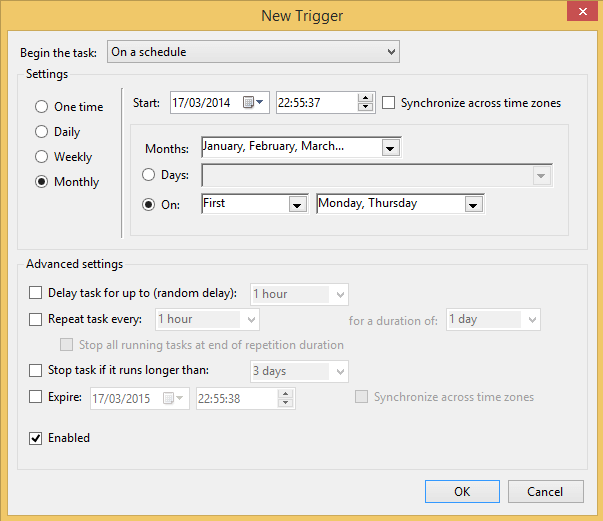
The first issues are addressed, as shown below:
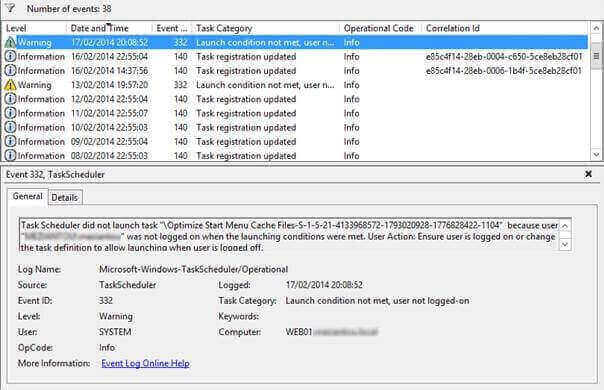
For logging, the Task Scheduler takes care of everything and saves as much information as possible: the beginning of the task, the actions performed and the result thereof, the end of the task, etc.
As for user accounts, as always, it's more complicated.
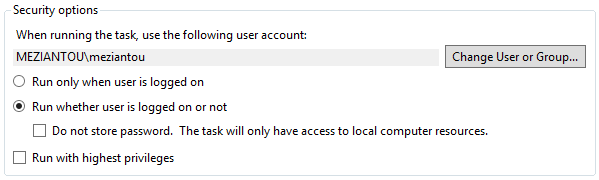
The simplest option is to run the task under the current user's account, but only when they are logged in. Microsoft also considered UAC with the "Run with highest privileges" option, which uses the unfiltered security token (i.e., with all groups and privileges) to run the task.
The "Do not store password" option uses Service-for-User (an extension of Kerberos RFC 1510), which does not allow the task to access network resources. The user must also have the "Logon as batch job" privilege.
For the task to access resources on the network without necessarily being connected, the password must be saved. The problem is the management of this password. We sometimes see passwords unchanged for 5 years, which of course is not a good practice.
Windows Server 2008 R2 introduced Managed Service Accounts, which can be used for services and for which Windows automatically manages the password. Windows Server 2012 extended this notion with the Group Managed Service Account, which is not limited to Windows services. The procedure to create and use this type of account for a scheduled task is shown here: http://blogs.technet.com/b/askpfeplat/archive/2012/12/17/windows-server-2012-group-managed-Service-accounts.aspx
#Microsoft SQL Server
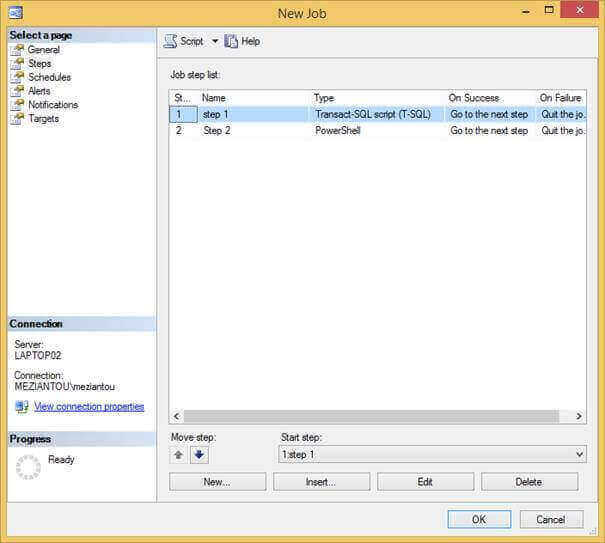
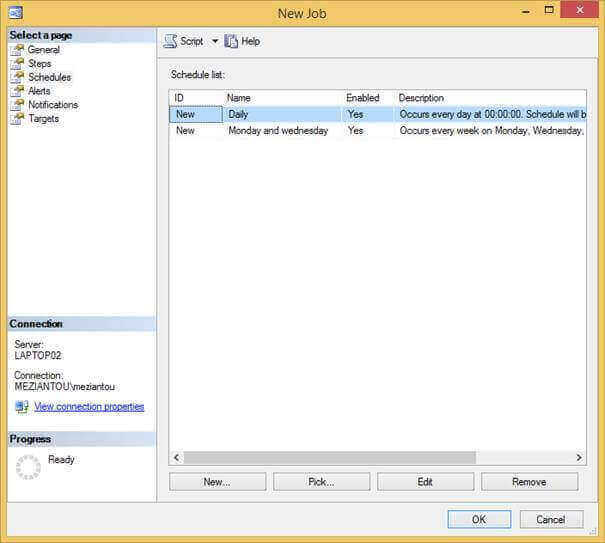
SQL Server also provides a task scheduler with similar functionality, except that tasks run under the SQL Server Agent service account. Its purpose is mainly to interact with SQL Server, but it is also possible to run a command or a PowerShell script.
#Quartz.NET
Quartz.net is the .NET port of Quartz, a Java library. It provides many options for reliably scheduling and executing tasks.
Here is a small example:
C#
public class Job : IJob
{
   public void Execute(IJobExecutionContext context)
   {
   Console.WriteLine(DateTime.Now);
   }
}
C#
ISchedulerFactory schedFact = new StdSchedulerFactory();
IScheduler sched = schedFact.GetScheduler();
sched.Start();

// Create the task
IJobDetail job = JobBuilder.Create<Job>()
    .WithIdentity("Job", "Demo")
    .Build();
ITrigger trigger = TriggerBuilder.Create()
    .WithIdentity("Trigger", "Demo")
    .StartNow()
    .WithSimpleSchedule(x => x.WithIntervalInSeconds(5)
    .RepeatForever())
    .Build();
sched.ScheduleJob(job, trigger);
#ASP.NET Cache
A solution that I find rather fun is based on the expiration of an element in the ASP.NET cache:
C#
protected void Application_Start(object sender, EventArgs e)
{
    AddTask("DoStuff", 5);
}

private void AddTask(string name, int seconds)
{
    HttpRuntime.Cache.Insert(name, seconds, null, DateTime.Now.AddSeconds(seconds), Cache.NoSlidingExpiration, CacheItemPriority.NotRemovable, CacheItemRemoved);
}

public void CacheItemRemoved(string k, object v, CacheItemRemovedReason r)
{
    // TODO: Execute the task

    AddTask(k, Convert.ToInt32(v)); // reschedule the task
}
This solution is very limited in terms of functionality and is not very accurate. Moreover, launching a task in the same process as the website is a bad idea. Nothing tells us when recycling the app pool will take place (maybe in the middle of the task 😦)
#Conclusion
There are several ways to run a task on a schedule. I recommend the first two because they were designed to handle a wide range of scenarios and are easy to configure.
Do you have a question or a suggestion about this post? Contact me!
