As a software developer, it is important to keep users informed when you release a new version and highlight what has changed. It is also common to communicate about the roadmap. Microsoft Edge platform status and Office 365 Roadmap are great examples of what users can expect:
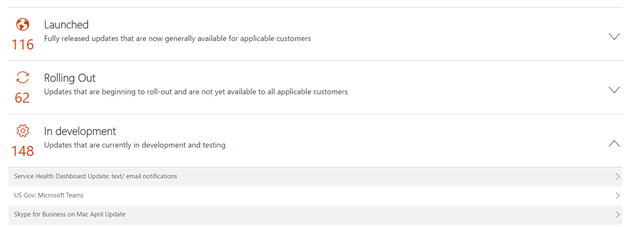
If you are using VSTS (Visual Studio Team Services) and work items to plan and manage your project, you already have everything you need to create a changelog. A work item contains rich information including a type (bug, feature, user story, etc.), a title, a description, a status, and a last updated date. You can filter which work items to include in the changelog.
The solution breaks down into 3 steps:
- Creating a query to select the work items to use to generate the changelog
- Using the VSTS API to execute the query and get the work items
- Create a page and an RSS feed
#Creating the query
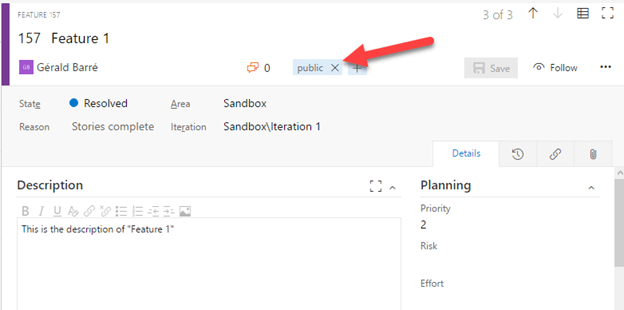
First, I decided to filter the work items to include in the changelog by tagging them with the "public" tag:
Then, I created a custom query to get the work items that have the public tag:
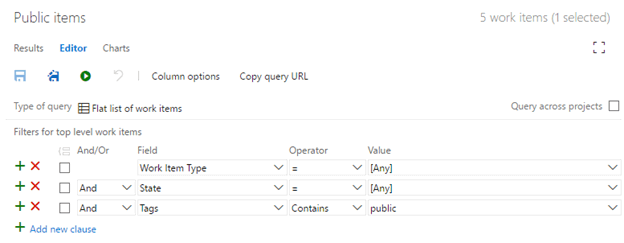
Now, you can execute this query to get all the expected work items. Of course, you may want to adapt it to your needs.
#Getting the work items using the VSTS API
We'll use the VSTS REST API to get the result of the query. First, you need to get a personal access token:
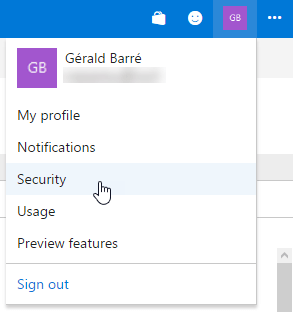
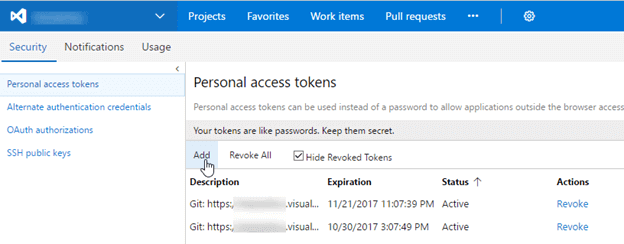
The access token is a random string:

The code makes three HTTP requests. The first retrieves the details of the custom query by its path. The second executes the query and returns a list of IDs. The third fetches the details of each work item by its ID.
C#
public class WorkItem
{
    [JsonProperty("id")]
    public int Id { get; set; }
    [JsonProperty("rev")]
    public int Revision { get; set; }
    [JsonProperty("url")]
    public string Url { get; set; }
    [JsonProperty("fields")]
    public WorkItemFields Fields { get; set; }

    public static async Task<IList<WorkItem>> LoadAllAsync(CancellationToken ct)
    {
        // TODO Chage the constant values
        const string personalAccessToken = "TODO: personal access key";
        const string collectionUrl = "https://xxx.visualstudio.com/DefaultCollection/";
        const string projectUrl = "https://xxx.visualstudio.com/DefaultCollection/yyy/";
        const string queryPath = "Shared%20Queries/public%20Items"; // URL encoded

        string credentials = Convert.ToBase64String(Encoding.ASCII.GetBytes(string.Format("{0}:{1}", "", personalAccessToken)));
        using (var client = new HttpClient())
        {
            client.DefaultRequestHeaders.Accept.Clear();
            client.DefaultRequestHeaders.Accept.Add(new MediaTypeWithQualityHeaderValue("application/json"));
            client.DefaultRequestHeaders.Authorization = new AuthenticationHeaderValue("Basic", credentials);

            // ----------------
            // 1 - Get the url of the custom query, so we can execute it.
            // ----------------
            string queryUrl;
            using (var response = await client.GetAsync(projectUrl + "_apis/wit/queries/" + queryPath + "?api-version=2.2", ct))
            {
                var result = await response.Content.ReadAsStringAsync().ConfigureAwait(false);
                var jobject = JObject.Parse(result);

                queryUrl = jobject.SelectToken("$._links.wiql").Value<string>("href");
                if (queryUrl == null)
                    throw new Exception("Query not found");
            }

            // ----------------
            // 2 - Execute the query and get the ids of the work items
            // ----------------
            List<int> workItemIds;
            using (var response = await client.GetAsync(queryUrl, ct))
            {
                var result = await response.Content.ReadAsStringAsync().ConfigureAwait(false);
                var jobject = JObject.Parse(result);
                workItemIds = jobject.SelectTokens("$.workItems..id").Cast<JValue>().Select(v => Convert.ToInt32(v.Value)).ToList();
            }

            // ----------------
            // 3 - Get work item details
            // ----------------
            var workItems = new List<WorkItem>();
            const int maxItemPerRequest = 200; // cannot get more than 200 items per query
            for (var i = 0; i < workItemIds.Count; i += maxItemPerRequest)
            {
                var ids = string.Join(",", workItemIds.Skip(i).Take(maxItemPerRequest));
                using (var response = await client.GetAsync(collectionUrl + "_apis/wit/workitems?api-version=2.2&ids=" + ids, ct))
                {
                    var result = await response.Content.ReadAsStringAsync().ConfigureAwait(false);
                    var arrayResult = JsonConvert.DeserializeObject<ArrayResult<WorkItem>>(result);
                    workItems.AddRange(arrayResult.Value);
                }
            }

            return workItems;
        }
    }
}

internal class ArrayResult<T>
{
    public int Count { get; set; }
    public T[] Value { get; set; }
}

public class WorkItemFields
{
    [JsonProperty("System.AreaPath")]
    public string AreaPath { get; set; }
    [JsonProperty("System.TeamProject")]
    public string TeamProject { get; set; }
    [JsonProperty("System.IterationPath")]
    public string IterationPath { get; set; }
    [JsonProperty("System.WorkItemType")]
    public string WorkItemType { get; set; }
    [JsonProperty("System.State")]
    public string State { get; set; }
    [JsonProperty("System.Reason")]
    public string Reason { get; set; }
    [JsonProperty("System.Title")]
    public string Title { get; set; }
    [JsonProperty("System.Description")]
    public string Description { get; set; }
    [JsonProperty("System.Tags")]
    public string Tags { get; set; }
    [JsonProperty("System.CreatedDate")]
    public DateTime CreatedDate { get; set; }
    [JsonProperty("System.ChangedDate")]
    public DateTime ChangedDate { get; set; }

    [JsonExtensionData]
    public IDictionary<string, object> AdditionalFields { get; set; }
}
#Generate the page
Before generating a web page, we need to extract the data from the work items:
C#
public class ChangeLog
{
    public string ApplicationName { get; set; }
    public IList<ChangeLogItem> Items { get; set; }

    public static async Task<ChangeLog> LoadAsync(CancellationToken ct)
    {
        var workItems = await WorkItem.LoadAllAsync(ct);

        var changeLog = new ChangeLog();
        changeLog.ApplicationName = "Sample";
        changeLog.Items = workItems.Select(wi => new ChangeLogItem()
        {
            Id = wi.Id,
            Title = wi.Fields.Title,
            Description = wi.Fields.Description,
            Status = GetItemStatus(wi.Fields.State),
            Type = GetItemType(wi.Fields.WorkItemType),
            CreatedDate = wi.Fields.CreatedDate,
            LastUpdatedDate = wi.Fields.ChangedDate
        }).ToList();

        return changeLog;
    }

    private static ChangeLogItemType GetItemType(string value)
    {
        if (value == null)
            return ChangeLogItemType.Unknown;

        switch (value.ToLowerInvariant())
        {
            case "feature":
            case "task":
                return ChangeLogItemType.Feature;

            case "bug":
                return ChangeLogItemType.Bug;

            default:
                return ChangeLogItemType.Unknown;
        }
    }

    private static ChangeLogItemStatus GetItemStatus(string value)
    {
        if (value == null)
            return ChangeLogItemStatus.Unknown;

        switch (value.ToLowerInvariant())
        {
            case "new":
            case "active":
            case "resolved":
                return ChangeLogItemStatus.InDevelopment;

            case "closed":
                return ChangeLogItemStatus.Released;

            case "removed":
                return ChangeLogItemStatus.Cancelled;

            default:
                return ChangeLogItemStatus.Unknown;
        }
    }
}

public class ChangeLogItem
{
    public int Id { get; set; }
    public string Title { get; set; }
    public string Description { get; set; }
    public DateTime CreatedDate { get; set; }
    public DateTime LastUpdatedDate { get; set; }
    public ChangeLogItemType Type { get; set; }
    public ChangeLogItemStatus Status { get; set; }
}

public enum ChangeLogItemType
{
    Unknown,
    Feature,
    Bug
}

public enum ChangeLogItemStatus
{
    Unknown,
    Released,
    InDevelopment,
    Cancelled
}
Now we can generate a page. Here's the controller:
C#
public class HomeController : Controller
{
    public async Task<IActionResult> ChangeLog()
    {
        var changeLog = await ChangeLog.LoadAsync(HttpContext.RequestAborted);
        return View(changeLog);
    }
}
And the view:
Razor
@model ChangeLog

<h2>What's new</h2>

@foreach (var item in Model.Items)
{
    <div id="wi-@item.Id" class="workitem workitem-@item.Type workitem-@item.Status">
        <h2>@item.Title</h2>
        <p>@item.Description</p>
    </div>
}
Of course, you'll need to add some CSS to get a beautiful page 😃
#Notify the users of your application using an RSS feed
Creating a page is great, but some users want to be notified when a new item is added. Some prefer subscribing to an RSS feed, others want an email, and some may want something else. If you remember a previous post about Zapier, you will see that creating an RSS feed is all you need to give users that choice.
Creating an RSS feed is very easy. While this is not the best way to do it, you can use Razor 😃 The code in the controller is the same as for the web page:
C#
public class HomeController : Controller
{
    public async Task<IActionResult> ChangeLog()
    {
        var changeLog = await ChangeLog.LoadAsync(HttpContext.RequestAborted);
        return View(changeLog);
    }

    public async Task<IActionResult> Rss()
    {
        var changeLog = await ChangeLog.LoadAsync(HttpContext.RequestAborted);
        return View(changeLog);
    }
}
And the view generates a valid XML file:
Razor
@model WebAppChangeLog.Model.ChangeLog
@{
    Layout = null;
    Context.Response.ContentType = "application/rss+xml";
}
<?xml version="1.0" encoding="utf-8" ?>
<rss version="2.0" xmlns:dc="http://purl.org/dc/elements/1.1/" xmlns:slash="http://purl.org/rss/1.0/modules/slash/" xmlns:wfw="http://wellformedweb.org/CommentAPI/">
    <channel>
        <title>@Model.ApplicationName</title>
        <link>https://www.sample.com/rss.aspx</link>
        <description>Change Log</description>
        <copyright>Copyright © @DateTime.UtcNow.Year</copyright>
        <pubDate>@DateTime.UtcNow.ToString("R")</pubDate>

        @foreach (var item in Model.Items)
        {
            <item>
                <title>@item.Title</title>
                <description>@item.Description</description>
                <pubDate>@item.CreatedDate.ToString("R")</pubDate>
                <guid isPermalink="false">@item.Id</guid>
            </item>
        }
    </channel>
</rss>
#Conclusion
You now have a changelog available as a web page and an RSS feed. The changelog stays up to date automatically, since the data comes from VSTS work items that precisely track the features and bugs in your project.
Do you have a question or a suggestion about this post? Contact me!
