Application Insights lets you monitor your applications. It is essential for understanding which features are used, tracking unexpected exceptions, and identifying performance issues.
With Visual Studio 2017, integrating Application Insights into a web application takes about 30 seconds. However, there is no built-in support for desktop applications, so you will need to set it up manually.
First, create a new Application Insights instance in the Azure portal and note the instrumentation key:
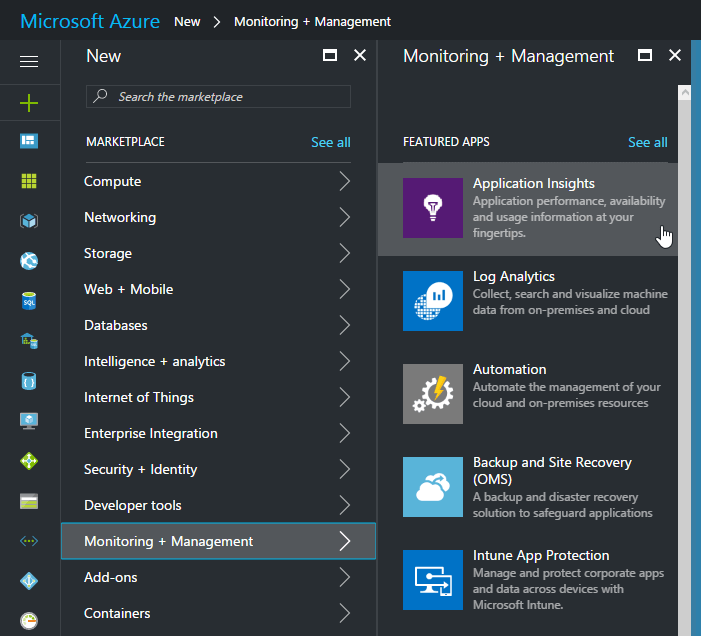 Create a new Azure Application Insights resource
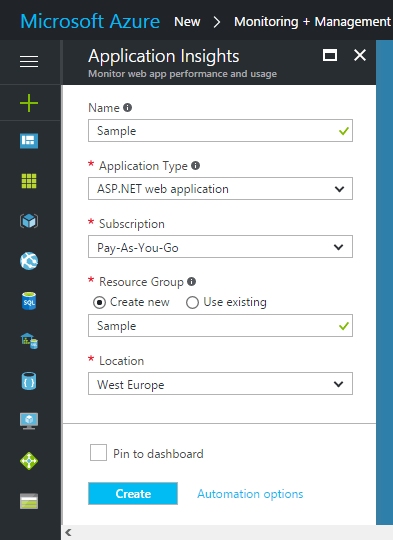 Set the project information
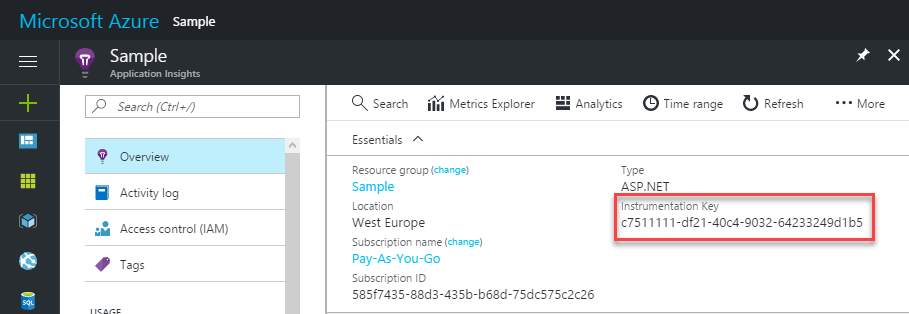 Get the Instrumentation Key
Then, add the following two NuGet packages to your project:
The first package provides the TelemetryClient class, which is used to send telemetry data to Azure. The second package is optional but strongly recommended. By default, TelemetryClient stores events in memory and sends them in batches at regular intervals, which means events can be lost if the application crashes. This is especially problematic when the lost event is the exception itself. The ServerTelemetryChannel from the second package solves this by persisting events to disk before sending them. If the application exits before flushing, any unsent events are delivered the next time the application starts.
C#
public static class Telemetry
{
    private const string TelemetryKey = "<INSERT YOUR TELEMETRY KEY HERE>";

    private static TelemetryClient _telemetry = GetAppInsightsClient();

    public static bool Enabled { get; set; } = true;

    private static TelemetryClient GetAppInsightsClient()
    {
        var config = new TelemetryConfiguration();
        config.InstrumentationKey = TelemetryKey;
        config.TelemetryChannel = new Microsoft.ApplicationInsights.WindowsServer.TelemetryChannel.ServerTelemetryChannel();
        //config.TelemetryChannel = new Microsoft.ApplicationInsights.Channel.InMemoryChannel(); // Default channel
        config.TelemetryChannel.DeveloperMode = Debugger.IsAttached;
#if DEBUG
        config.TelemetryChannel.DeveloperMode = true;
#endif
        TelemetryClient client = new TelemetryClient(config);
        client.Context.Component.Version = Assembly.GetEntryAssembly().GetName().Version.ToString();
        client.Context.Session.Id = Guid.NewGuid().ToString();
        client.Context.User.Id = (Environment.UserName + Environment.MachineName).GetHashCode().ToString();
        client.Context.Device.OperatingSystem = Environment.OSVersion.ToString();
        return client;
    }

    public static void SetUser(string user)
    {
        _telemetry.Context.User.AuthenticatedUserId = user;
    }

    public static void TrackEvent(string key, IDictionary<string, string> properties = null, IDictionary<string, double> metrics = null)
    {
        if (Enabled)
        {
            _telemetry.TrackEvent(key, properties, metrics);
        }
    }

    public static void TrackException(Exception ex)
    {
        if (ex != null && Enabled)
        {
            var telex = new Microsoft.ApplicationInsights.DataContracts.ExceptionTelemetry(ex);
            _telemetry.TrackException(telex);
            Flush();
        }
    }

    internal static void Flush()
    {
        _telemetry.Flush();
    }
}
You can then use it anywhere in your application:
C#
Telemetry.TrackEvent("Application started");
As a best practice, track all unhandled exceptions in your application:
C#
// Somewhere in the Main method or Startup event in a WPF app
AppDomain.CurrentDomain.UnhandledException += CurrentDomain_UnhandledException;
TaskScheduler.UnobservedTaskException += TaskScheduler_UnobservedTaskException;
Application.Current.DispatcherUnhandledException += DispatcherUnhandledException; // WPF app


private static void CurrentDomain_UnhandledException(object sender, UnhandledExceptionEventArgs e)
{
    var ex = e.ExceptionObject as Exception;
    Telemetry.TrackException(ex);
}

private static void TaskScheduler_UnobservedTaskException(object sender, UnobservedTaskExceptionEventArgs e)
{
    Telemetry.TrackException(e.Exception);
}

private static void DispatcherUnhandledException(object sender, DispatcherUnhandledExceptionEventArgs e)
{
    Telemetry.TrackException(e.Exception);
}
You can then analyze your data in the portal:
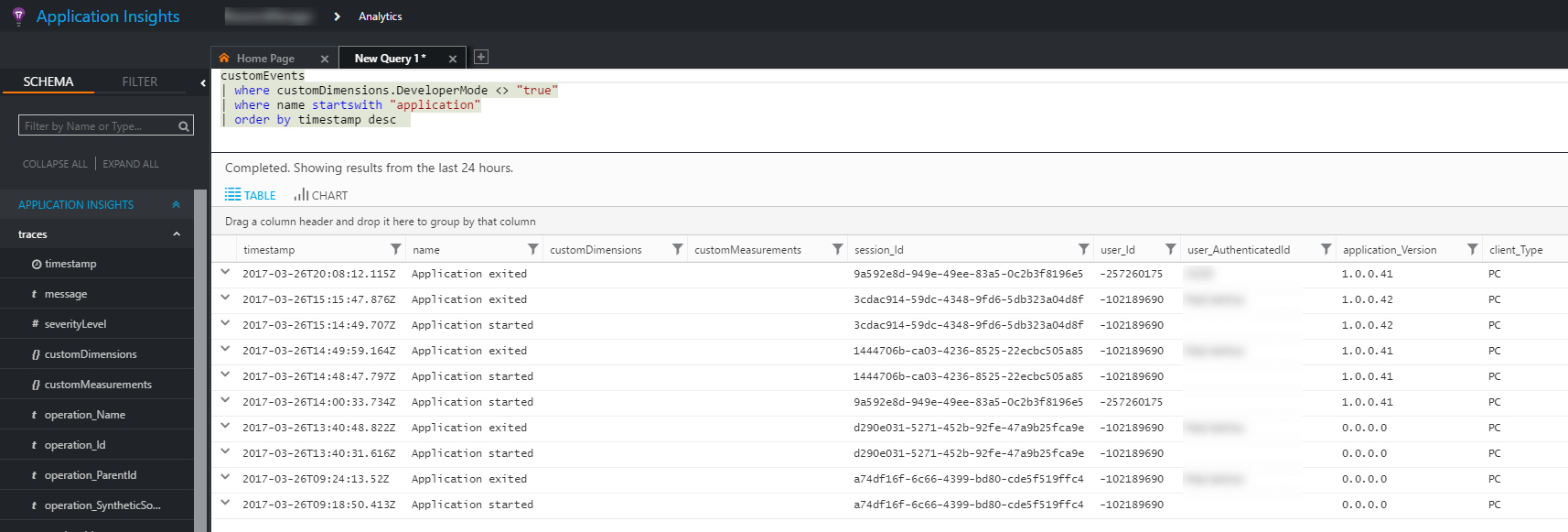 Azure Application Insights - Query result
Do you have a question or a suggestion about this post? Contact me!
