Nowadays, most of us are using TypeScript as a replacement for JavaScript. If you are not, you might want to check out this previous post: Still not using TypeScript?. TypeScript files must be compiled before you can use them in the browser. Visual Studio handles this automatically and works well out of the box. However, if you want a more advanced build workflow – for instance, to minify files or run tests – you may want to use a tool like grunt, gulp, or webpack. In this post, I'll use Gulp, a toolkit that helps you automate time-consuming tasks in your development workflow.

In this post, we'll see how Gulp can replace the automatic TypeScript compilation provided by Visual Studio.
#Disabling automatic TypeScript compilation
First, you need to disable the automatic compilation of TypeScript files in Visual Studio. Open the csproj file and add the TypeScriptCompileBlocked element:
csproj (MSBuild project file)
<Project Sdk="Microsoft.NET.Sdk.Web">

  <PropertyGroup>
    <TypeScriptCompileBlocked>true</TypeScriptCompileBlocked>
    <TypeScriptToolsVersion>Latest</TypeScriptToolsVersion>
  </PropertyGroup>

  ...

</Project>
#Adding the Gulpfile
Then, you need to install Gulp using npm. This will allow you to run Gulp from the command line. If you haven't already installed npm, you can get it here.
Shell
npm install -g gulp
Then, create the package.json. This file contains information about your project and the list of packages needed to build it. To create a new package.json file, run npm init and follow the prompts (press Enter to accept all defaults):
Shell
npm init
Then, install the packages required to compile TypeScript using Gulp:
TypeScript the TypeScript compilergulp-typescript a gulp plugin for handling TypeScript compilation workflowgulp-sourcemaps a gulp plugin for generating source maps, so you can easily debug your TypeScript code in the browser
Shell
npm install --save-dev gulp
npm install --save-dev gulp-sourcemaps
npm install --save-dev typescript
npm install --save-dev gulp-typescript
Your package.json should look like:
JSON
{
  "name": "sample",
  "version": "1.0.0",
  "description": "",
  "devDependencies": {
    "gulp": "^3.9.1",
    "gulp-sourcemaps": "^2.6.1",
    "gulp-typescript": "^3.2.2",
    "typescript": "^2.5.3"
  }
}
Now, you can create the gulpfile. Let's add a new file gulpfile.js at the root of the project.
JavaScript
"use strict";

var gulp = require("gulp");

gulp.task("default", ["js"]);

var tsProject;
gulp.task("js", function () {
    var ts = require("gulp-typescript");
    var sourcemaps = require('gulp-sourcemaps');

    if (!tsProject) {
        tsProject = ts.createProject("tsconfig.json");
    }

    var reporter = ts.reporter.fullReporter();
    var tsResult = tsProject.src()
        .pipe(sourcemaps.init())
        .pipe(tsProject(reporter));

    return tsResult.js
        .pipe(sourcemaps.write())
        .pipe(gulp.dest("wwwroot/js"));
});
If you run the gulp command, your TypeScript files will be compiled. This works, but ideally files should be compiled as soon as they are modified. Let's add a watch task that runs the js task whenever a .ts file under wwwroot/js/ changes.
JavaScript
gulp.task("watch", ["watch-js"]); // Maybe you'll add a watch-css or something else

gulp.task("watch-js", /* run the "js" task at the beginning */ ["js"], function () {
    return gulp.watch(["./wwwroot/js/**/*.ts"], ["js"]); // run the "js" task when a file is modified
});
You can now use the following command to compile your TypeScript files:
Shell
gulp watch
The hardest part is done. Now, let's integrate Gulp with Visual Studio so it starts automatically when you open the project and any errors appear directly in the IDE.
#Running gulp when the solution is opened
Open the task runner:
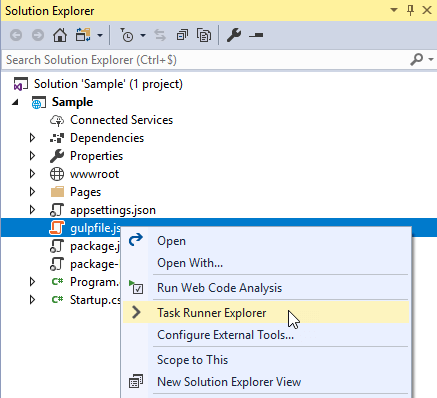
It lists the available tasks in the gulp file:
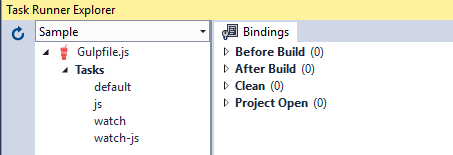
You can double-click to execute a task.
To launch the watch task when you open the solution, use the task runner's binding feature. Bindings let you run a task automatically on certain Visual Studio events.
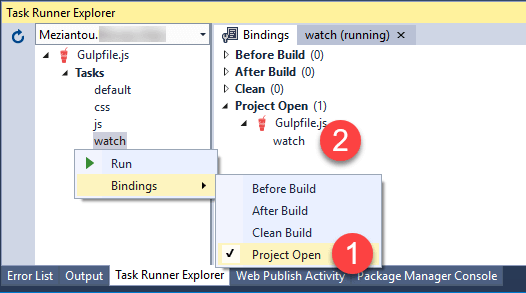 Add task runner binding
#Conclusion
The default integration of TypeScript in Visual Studio is very good. However, if you prefer using a task runner such as Gulp, you can also easily integrate it into Visual Studio. This allows you to handle more advanced scenarios, such as bundle and minify JavaScript and CSS files.
Do you have a question or a suggestion about this post? Contact me!
