As a user, explaining a software issue can be difficult. How do you describe the problem to a developer who isn't there with you? Developers need to know exactly how to reproduce the issue to fix it. They often deal with incomplete explanations and have to guess the missing steps.
Problem Steps Recorder (PSR) is a built-in Windows tool, which means all your Windows users already have it. It lets you record your actions step by step and generate a report to send to the developer. The report includes a description of each action and a screenshot for every interaction (clicks and key presses). This makes it easy to see exactly where a user clicks or double-clicks, and which keys they press. Users can also add comments by selecting an area of the screen and typing a message, providing extra context to help pinpoint the problem.
#How does it work?
To start Problem Steps Recorder, search for "Step Recorder" in the Start menu and select "Steps Recorder" or "Record steps to reproduce a problem".
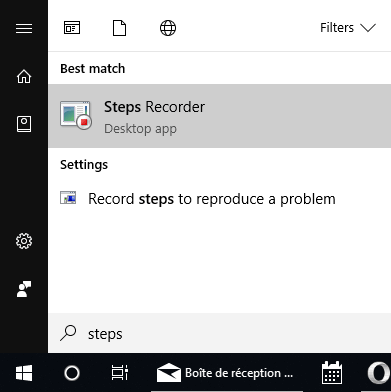 Start Problem Steps Recorder from the Start Menu
You can also start PSR using:
- Windows+R
- Enter
PSR and click OK
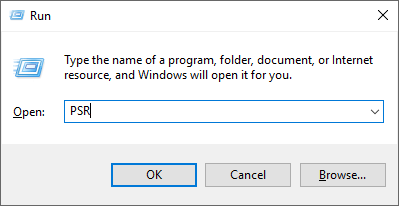 Start Problem Steps Recorder (PSR) using Run
You can now press "Start Record" to start the recording:

All actions you perform are recorded, so simply go through the steps needed to reproduce the problem. You can add a comment at any time during the recording by clicking "Add Comment". Select the area of the screen you want to annotate, then type your message. These comments will be included in the final report.
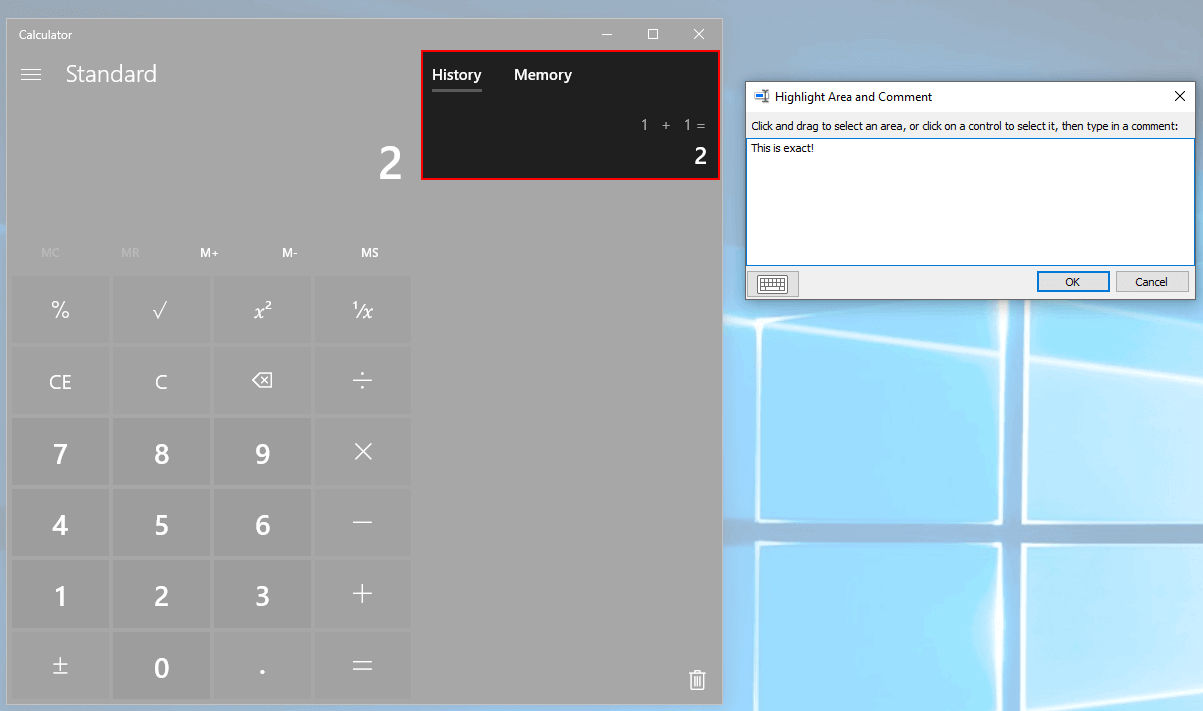 Problem Steps Recorder (PSR) - Add comment
Finally, click "Stop Record" to generate the report. It lists all the recorded actions:
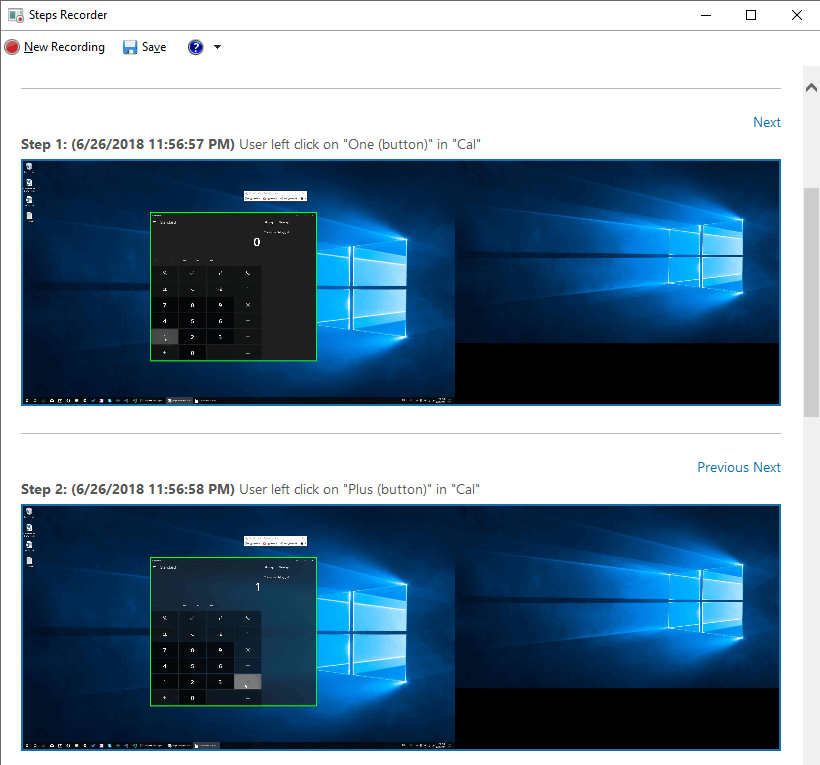 Problem Steps Recorder (PSR) - Generated Report
At the end of the report, there are more advanced details:
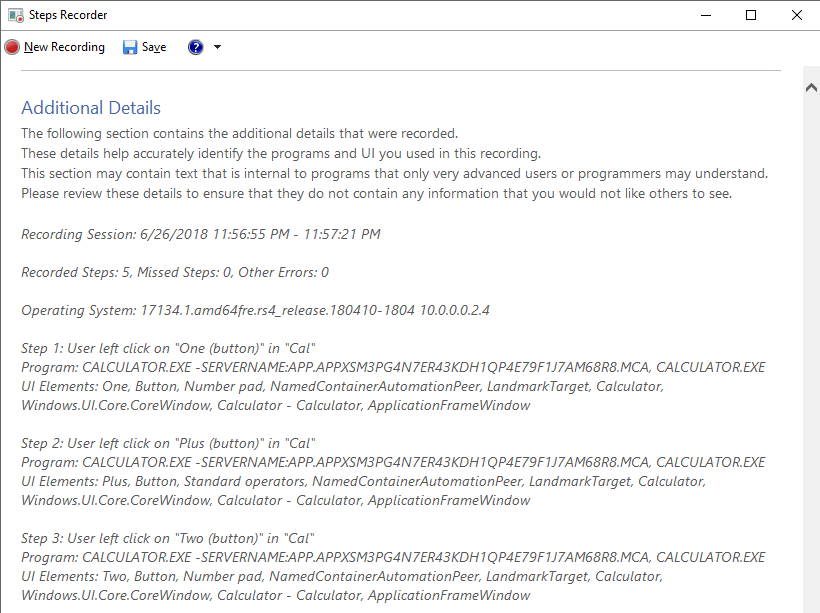 Problem Steps Recorder (PSR) - Show technical details
#Export the report
You can export the report to a zip archive that contains an MHT file (web page archive format) by clicking on "Save".
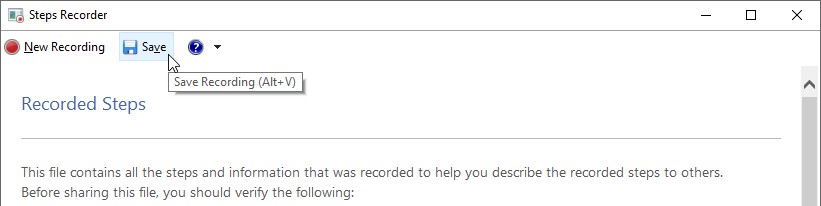 Problem Steps Recorder (PSR) - Export the generated report
You can open the MHT file with a web browser. The format is very convenient because you can easily attach the file to a bug report on VSTS, JIRA, or GitHub. The developers will enjoy fixing your issues 😉
Do you have a question or a suggestion about this post? Contact me!
