C# evolves regularly. C# 7.1 is available starting with Visual Studio 2017 Update 3 (version 15.3). However, its new features are not enabled by default; the compiler uses the latest major version (currently 7.0). You must explicitly configure your project to opt in to a newer language version.
If you're curious about what's new in C# 7.1, the proposals are available on GitHub:
#Method 1: Using the Light bulb
This is the simplest approach. Just use a new language feature in your code. Visual Studio will automatically detect it and prompt you to upgrade the project's language version:
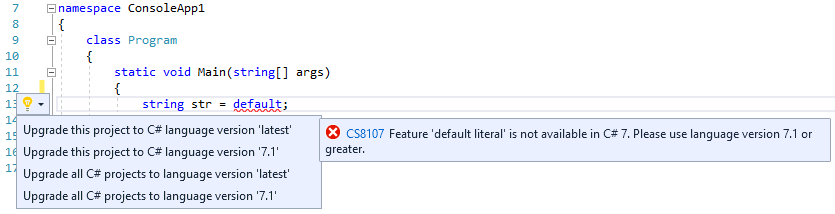 Enabling C# features using lightbulb
#Method 2: Using the project settings window
- Open the settings of your project
- Select the Build tab
- Click the Advanced button
- Select the version you want
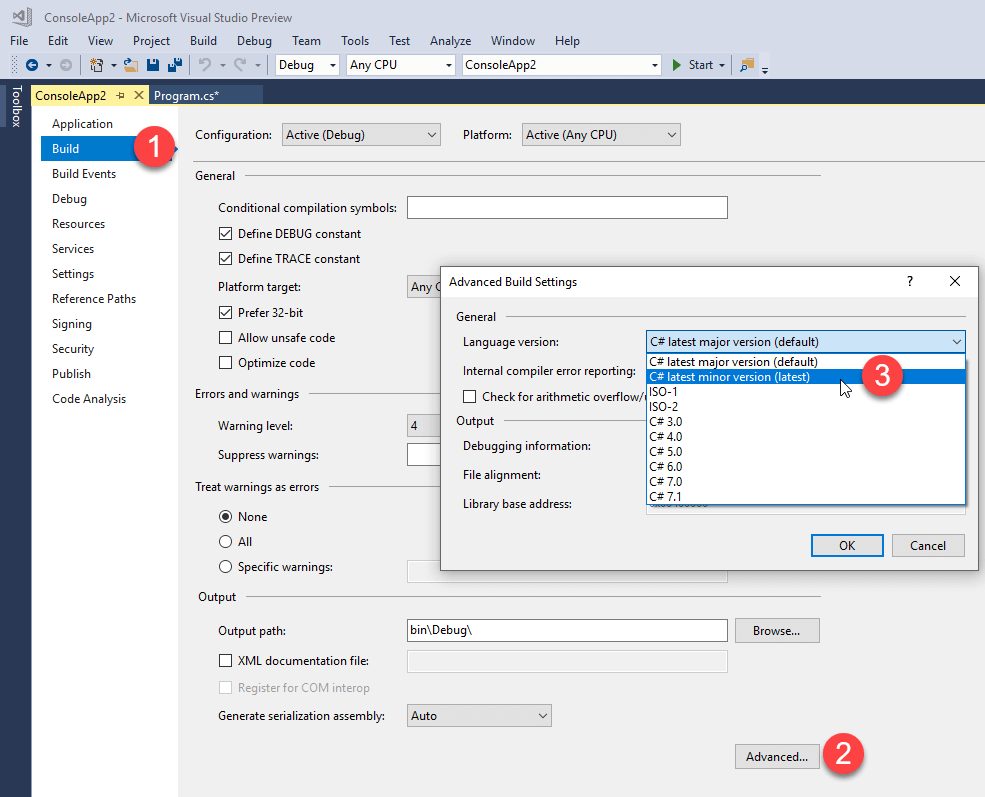 Enabling C# features using project properties
#Method 3: Editing the csproj
You can edit the csproj file directly, and add <LangVersion>latest</LangVersion> or the explicit version <LangVersion>7.1</LangVersion>:
csproj (MSBuild project file)
  <PropertyGroup>
    <OutputType>Exe</OutputType>
    <RootNamespace>ConsoleApp1</RootNamespace>
    <AssemblyName>ConsoleApp1</AssemblyName>
    <TargetFrameworkVersion>v4.7</TargetFrameworkVersion>
    <FileAlignment>512</FileAlignment>
    <AutoGenerateBindingRedirects>true</AutoGenerateBindingRedirects>
    <LangVersion>latest</LangVersion>
  </PropertyGroup>
#Method 4: Using a prop file
If you want to set the language version for all your projects at once, create a file named Directory.Build.props at the root of your repository. This file defines common properties shared across your projects:
csproj (MSBuild project file)
<Project>
  <PropertyGroup>
    <LangVersion>latest</LangVersion>
  </PropertyGroup>
</Project>
MSBuild merges your .csproj files with the props file, so the LangVersion setting applies automatically to all existing and new projects in your solution. You can also use this file to configure shared properties such as the author, company, or project URL. See an example here: Directory.Build.props
Do you have a question or a suggestion about this post? Contact me!
