Code coverage lets you see which parts of your code are exercised by tests and which are not. It is useful for verifying that your tests cover all required cases, especially since it can be difficult to identify every branch that needs testing.
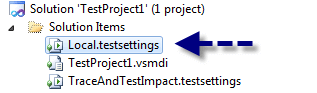
Here is how to enable this feature in Visual Studio 2010. First, create a test project, then open the test configuration file (local.testsettings) by double-clicking it.
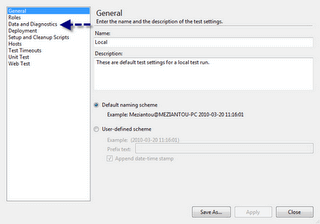
Then go to the Data and Diagnostics category:
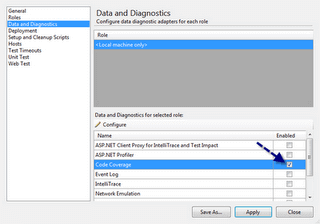
Select Code Coverage:
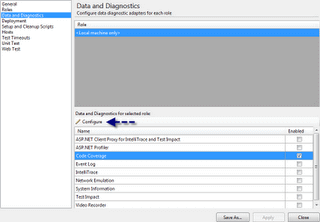
Click Configure:
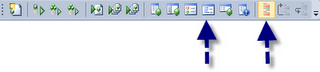
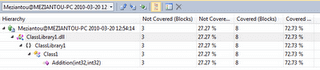
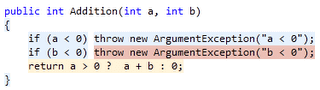
After running your tests, you can view the code coverage results either in the results window or directly in the editor. Visual Studio highlights tested lines in green, untested lines in red, and partially tested lines in orange.
Do you have a question or a suggestion about this post? Contact me!
