Many websites require users to log in to access their resources. From a user's perspective, the login process can be complicated, and this is especially true when a site supports both username/password and social providers (Microsoft, Google, Facebook, etc.). For instance, some users enter their Google credentials into the username/password form instead of clicking the Google button, or they simply forget which provider they used.
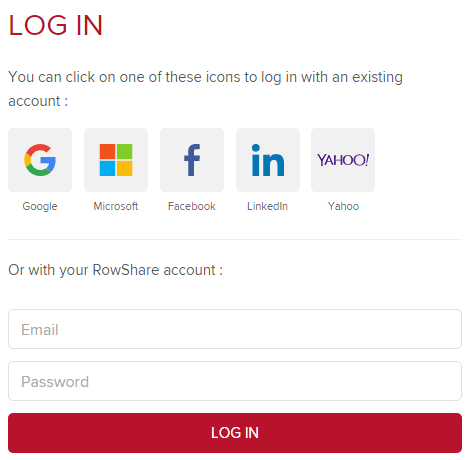
To help users, major web browsers allow saving credentials and autofilling forms, letting users log in quickly. This works well for username/password logins, but not for social providers, and users still need to navigate to the login page. The Credential Management API lets you go further: since the browser already knows the user's credentials, you can automatically sign them in as soon as they access the site, without even navigating to the login page. In practice, users may only see the login page the first time. After that, they can log in without typing their credentials or visiting the login page at all.
#Can I use the Credential Management API?
Browser support for this API is limited. At the time of writing, only Google Chrome and the developer version of Opera (44) support it. However, that is not a reason to avoid it. Using this API does not break the default login flow; it only enhances it.
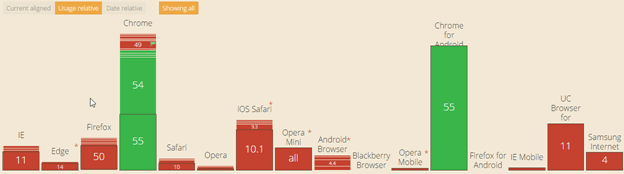
Source: https://caniuse.com/#feat=credential-management
#How does it work?
For this demo, I'll use ASP.NET Core and TypeScript. The code is intentionally simple, so it can easily be adapted to other languages or frameworks.
First, you need to create a login form:
Razor
<form asp-controller="Account" asp-action="Login" method="post">
    <input asp-for="Email" />
    <input asp-for="Password" />
    <button type="submit">Log in</button>
</form>
Then, create a controller action. This code comes from the default ASP.NET template with Individual User Accounts.
C#
[HttpPost]
[AllowAnonymous]
public async Task<IActionResult> Login(LoginViewModel model)
{
    if (ModelState.IsValid)
    {
        var result = await _signInManager.PasswordSignInAsync(model.Email, model.Password, isPersistent: false); // Create the authentication cookie
        if (result.Succeeded)
            return RedirectToLocal(returnUrl);
        else
        {
            ModelState.AddModelError(string.Empty, "Invalid login attempt.");
            return View(model);
        }
    }

    return View(model);
}
Now, when the user logs in, the browser should display a "Save credential" button:
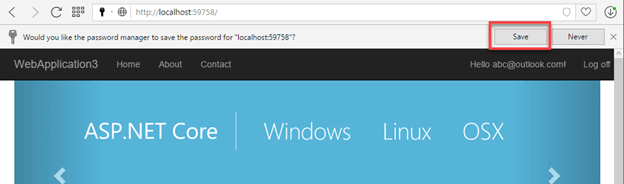
Once the user has saved their password, you can access their credentials from JavaScript. For security reasons, you cannot access the username or password directly. If you are using TypeScript, add the type declarations:
Shell
npm install @types/webappsec-credential-management
The basic code to get a saved credential for the current website is:
TypeScript
async function signIn(unmediated: boolean) {
    // Test if the Credential Manager API exists
    if (navigator.credentials) {
        // Ask for a credential
        // unmediated: if true, the user agent will only attempt to provide a Credential without user interaction
        const cred = await navigator.credentials.get({
            password: true,
            unmediated: unmediated
        });

        if (cred) {
            // Do something with the creds
        }
    }
}
The API supports both username/password credentials and federated credentials (login via an external provider such as Microsoft, Google, or Facebook). You can determine the type using the type property. In this post, we only handle username/password credentials, so we check that the type is password. Since we are using TypeScript, we can create a type guard function to avoid explicit casting of the cred variable:
TypeScript
function isPasswordCredential(credential: Credential) : credential is PasswordCredential {
    return credential.type === "password";
}
As mentioned earlier, you cannot directly access the username or password from the credential object. However, you can pass a PasswordCredential directly to the fetch function, which will send it to the server.
TypeScript
        if (cred) {
            if (isPasswordCredential(cred)) {
                cred.idName = "email"; // the username field is "email" as defined in the log in form (default "username")
                //cred.passwordName = "password";

                const response = await fetch("/Account/AutoLogin", {
                    method: "POST",
                    credentials: cred
                });

                if (response.ok) {
                    window.location.reload(); // reload the page with the authentication cookie
                }
            }
        }
If needed you can add additional data to the request. For instance, you can add the CSRF token:
TypeScript
                const additionalData = new FormData();
                const csrfInput = <HTMLInputElement>document.querySelector("input[name='__RequestVerificationToken']");
                additionalData.append("__RequestVerificationToken", csrfInput.value);
                cred.additionalData = additionalData;

                const response = await fetch("/Account/AutoLogin", {
                    method: "POST",
                    credentials: cred
                });
The AutoLogin action is the same as the Login action, except it returns a status code instead of an HTML response:
C#
[HttpPost]
[AllowAnonymous]
public async Task<IActionResult> AutoLogin(LoginViewModel model)
{
    if (ModelState.IsValid)
    {
        var result = await _signInManager.PasswordSignInAsync(model.Email, model.Password, isPersistent: false);
        if (result.Succeeded)
            return Ok();

        return BadRequest("Invalid login attempt.");
    }

    // If we got this far, something failed, redisplay form
    return Ok();
}
With the login code in place, call the signIn function on page load when the user is not authenticated.
TypeScript
signIn(true);
The first time, or if the user has more than one saved credential, show the account chooser UI:
TypeScript
signIn(false);
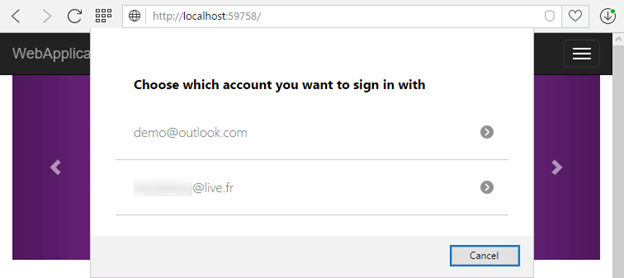
After the user logs out, you should prevent automatic sign-in. To do this, call requireUserMediation when the user clicks the log-out button. This does not delete the saved credential; it simply ensures that navigator.credentials.get will not return any credential without the user explicitly accepting it (unmediated: false).
TypeScript
if (navigator.credentials) {
    const logOutElement = document.getElementById("LogOut");
    if (logOutElement) {
        logOutElement.addEventListener("click", e => navigator.credentials.requireUserMediation());
    }
}
#Conclusion
The Credential Management API is a meaningful improvement to the user experience, simplifying the login process significantly. You can automatically sign users in without them noticing. Although browser support is currently limited to Chrome and Opera, you can already use it as a progressive enhancement alongside your existing login form. This post does not cover every method in the API; for example, we did not use the store method, which may be required for SPA applications. If you want to go further, here are some additional resources:
Do you have a question or a suggestion about this post? Contact me!
