In my last two posts, I covered improving ASP.NET Core website performance. The first was about caching files to ensure the browser downloads them only once. The second covered reducing server response size with gzip compression. Today, I continue on that theme with bundling and minifying stylesheets and JavaScript files.
Minification reduces the size of JavaScript and stylesheet files by removing comments, whitespace, and merging CSS rules, shortening variable and function names, replacing true with !0, and applying many other advanced techniques.
Bundling combines multiple files into one, reducing the number of requests needed to load a page and improving load times. With HTTP/2, bundling is less critical, especially if you can leverage Server Push (not currently supported in .NET Core). If you are not familiar with HTTP/2, read this blog post by two members of the IIS team.
Now that we understand why bundling and minification matter, let's see how to do it with Visual Studio and ASP.NET Core.
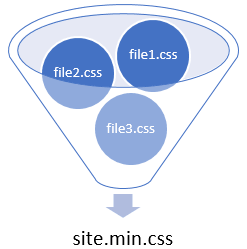
#Minifying files with Visual Studio
In the preview version of ASP.NET Core, the website template used Gulp to generate minified files. Gulp is widely used by front-end developers to automate build tasks. However, relying on Node.js and Gulp has drawbacks: creating a new project takes longer due to installing Node.js dependencies (around 1,500 files in node_modules), it increases build times, and every developer must have Node.js installed.
To eliminate the Node.js dependency, Mads Kristensen created a Visual Studio extension called BundlerMinifier. It uses NUglify, a fork of the Microsoft Ajax Minifier, to minify CSS and JS. Once installed, a new menu item appears in Solution Explorer:
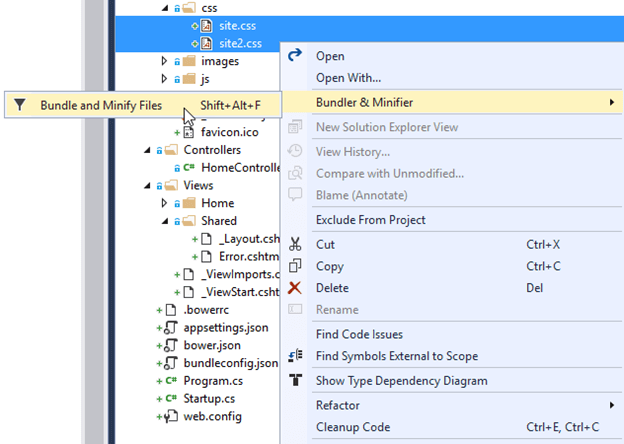
This menu is available for CSS and JS files. When you create a bundle, a bundleconfig.json file is added to the project containing the list of bundles and their optional settings.
JSON
[
  {
    "outputFileName": "wwwroot/css/site.min.css",
    "inputFiles": [
      "wwwroot/css/site.css",
      "wwwroot/css/site2.css"
    ]
  },
  {
    "outputFileName": "wwwroot/js/site.min.js",
    "inputFiles": [
      "wwwroot/js/site.js"
    ],
    "minify": {
      "enabled": true,
      "renameLocals": true
    },
    "sourceMap": false
  }
]
The extension monitors input files and automatically regenerates the output file when you save a change. This ensures the minified files are always up to date when you refresh the browser.
#Generating HTML
At this point, the solution contains both the source files and their minified counterparts. Typically, you want to use minified files only in production and original files during development for easier debugging. The environment tag helper lets you serve the right files based on the current environment:
HTML
<environment names="Development">
    <link rel="stylesheet" href="~/css/file1.css" />
    <link rel="stylesheet" href="~/css/file2.css" />
    <link rel="stylesheet" href="~/css/file3.css" />
</environment>
<environment names="Staging,Production">
    <link rel="stylesheet" href="~/css/bundle1.min.css" asp-append-version="true" />
    <link rel="stylesheet" href="~/css/bundle2.min.css" asp-append-version="true" />
</environment>
While this works, the approach is verbose (managing environments and append-version attributes), and it is not clear which files belong to which bundle. We already declared this information in bundleconfig.json, so why not reuse it to generate the link and script tags? The result could look like:
HTML
<bundle name="wwwroot/css/bundle1.min.css" />
<bundle name="wwwroot/css/bundle2.min.css" />
This is simpler and less error-prone. I developed this tag helper and it was merged into the BundlerMinifier repository. The tag helper reads the JSON file and, depending on the environment, generates the appropriate script and link tags with the file version appended. To use it:
Install the NuGet package BundlerMinifier.TagHelpers
Register the tag helpers in _ViewImports.cshtml:
HTML
@addTagHelper *, BundlerMinifier.TagHelpers
Use the tag helper. The name attribute must match the outputFileName of the bundleconfig.json file.
HTML
<bundle name="wwwroot/js/site.min.js" />
<bundle name="wwwroot/css/site.min.css" />
Optionally, you can configure the options in startup.cs:
C#
public void ConfigureServices(IServiceCollection services)
{
    services.AddMvc();
    services.AddBundles(options =>
    {
        options.UseMinifiedFiles = false;
        options.AppendVersion = false;
    });
}
#Conclusion
The BundlerMinifier extension by Mads Kristensen, combined with the bundle tag helper, makes it easy to serve minified CSS and JavaScript files and improve your website's load time. While it offers fewer options than some Node.js tools, it is simpler to set up and better integrated with Visual Studio.
Do you have a question or a suggestion about this post? Contact me!
