Sometimes you receive a computer without knowing the user or administrator password – for example, when taking over a colleague's old machine. Without valid credentials, you cannot log in. Rather than reinstalling Windows, you can add a new user or reset the administrator password.
The approach relies on running a command prompt as System. The easiest way is to boot Windows into recovery mode (before Windows loads normally), which gives you a command prompt with full system access. The trick is to replace the accessibility tool (utilman.exe) with a command prompt. This tool can be launched from the login screen by pressing the Shift key 5 times, and it runs as System. Alternatively, you can replace EaseOfAccessDialog.exe, which is more convenient since you can trigger it by clicking the accessibility button.
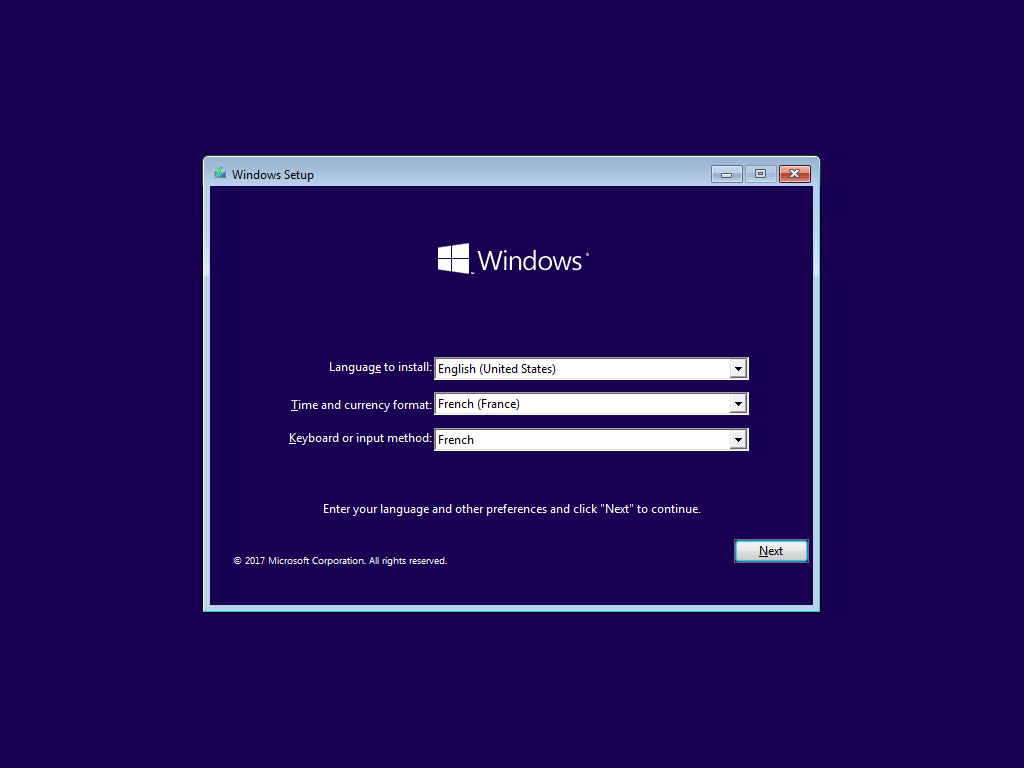
First, restart the computer in recovery mode. One option is to boot from a Windows 10 setup USB key or DVD. Another option is to interrupt the boot process (possibly twice); on the next start, Windows will automatically enter recovery mode.
Select your language
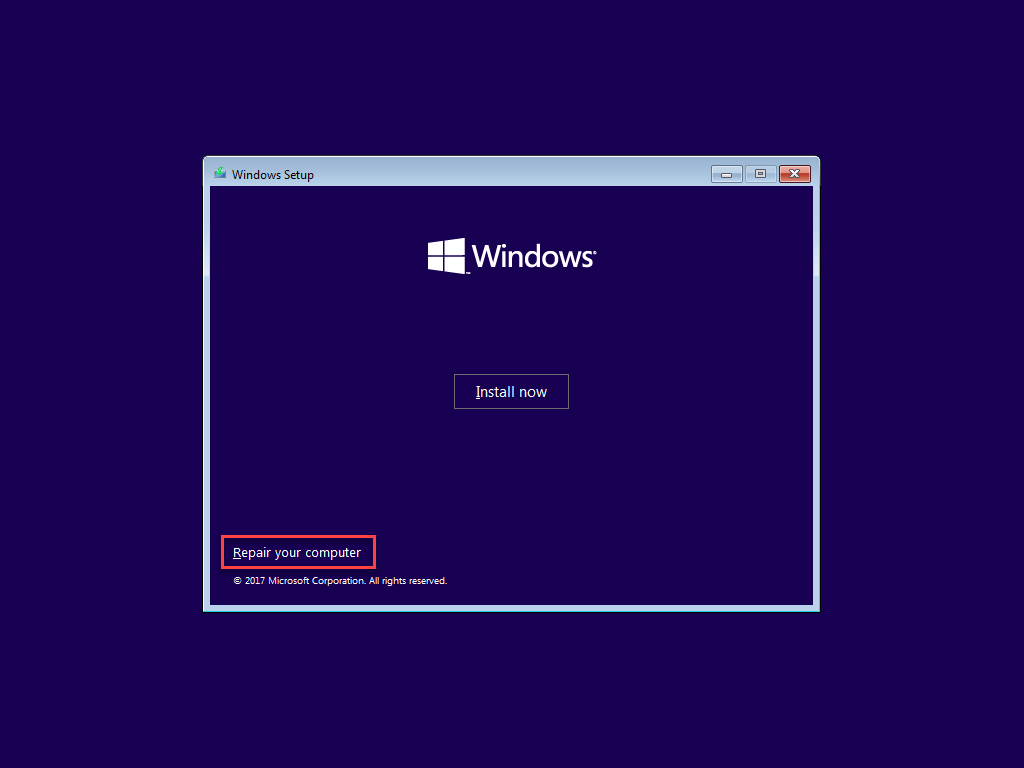
Click "Repair your computer"
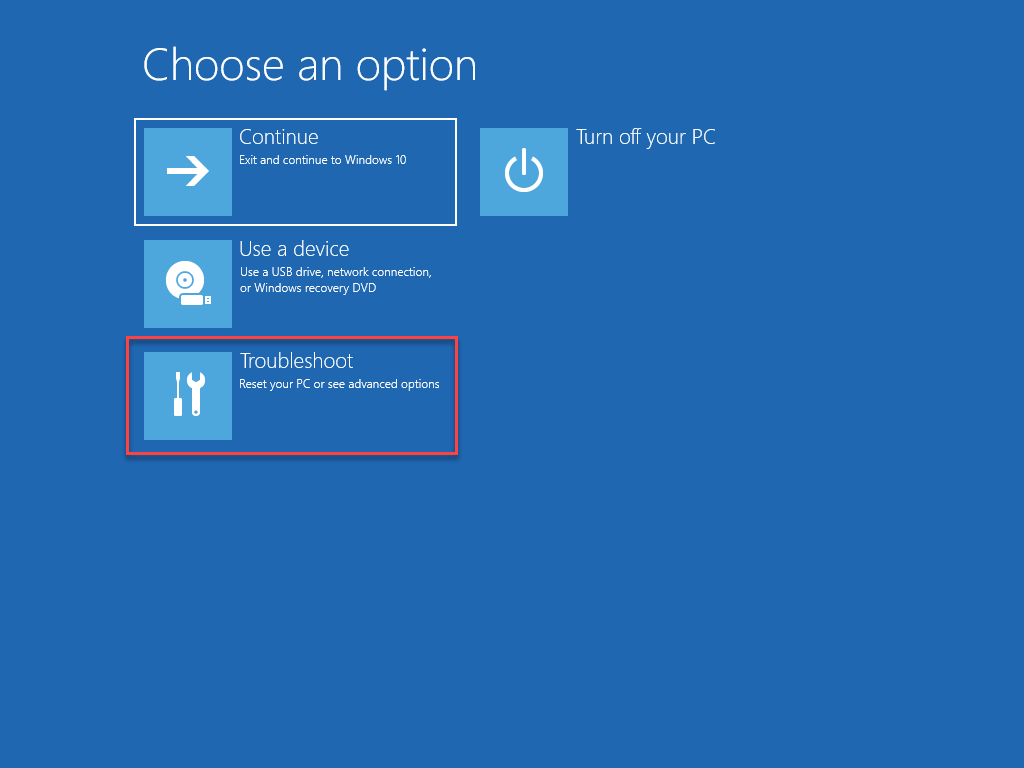
Click "Troubleshoot"
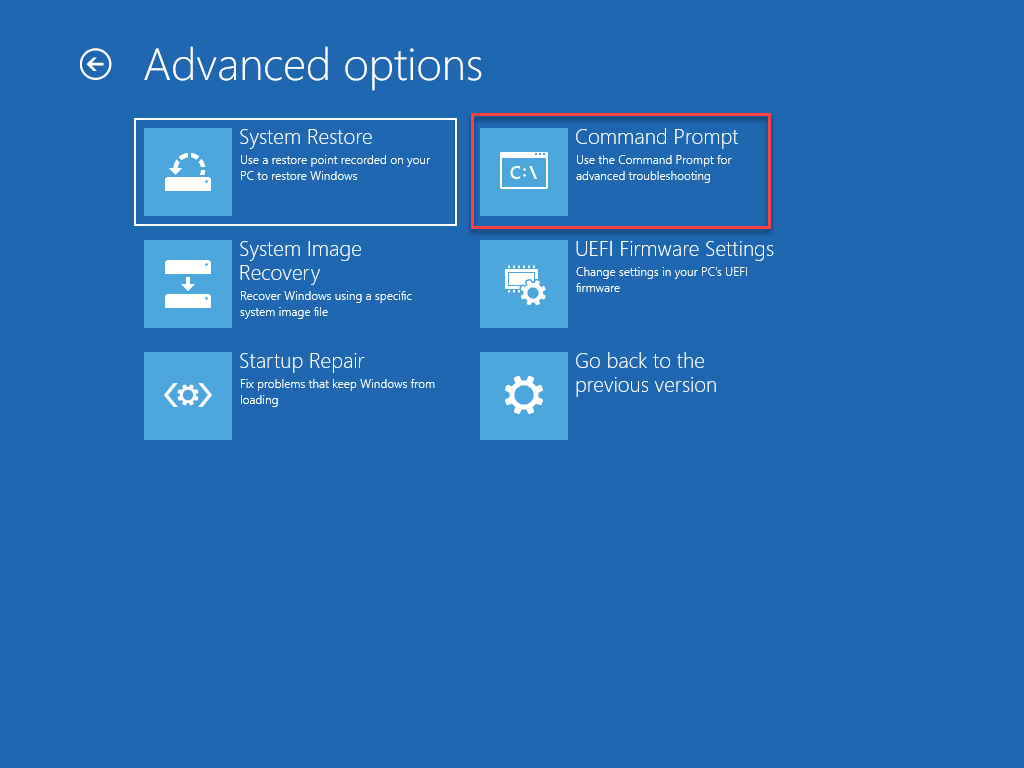
Click "Command Prompt"
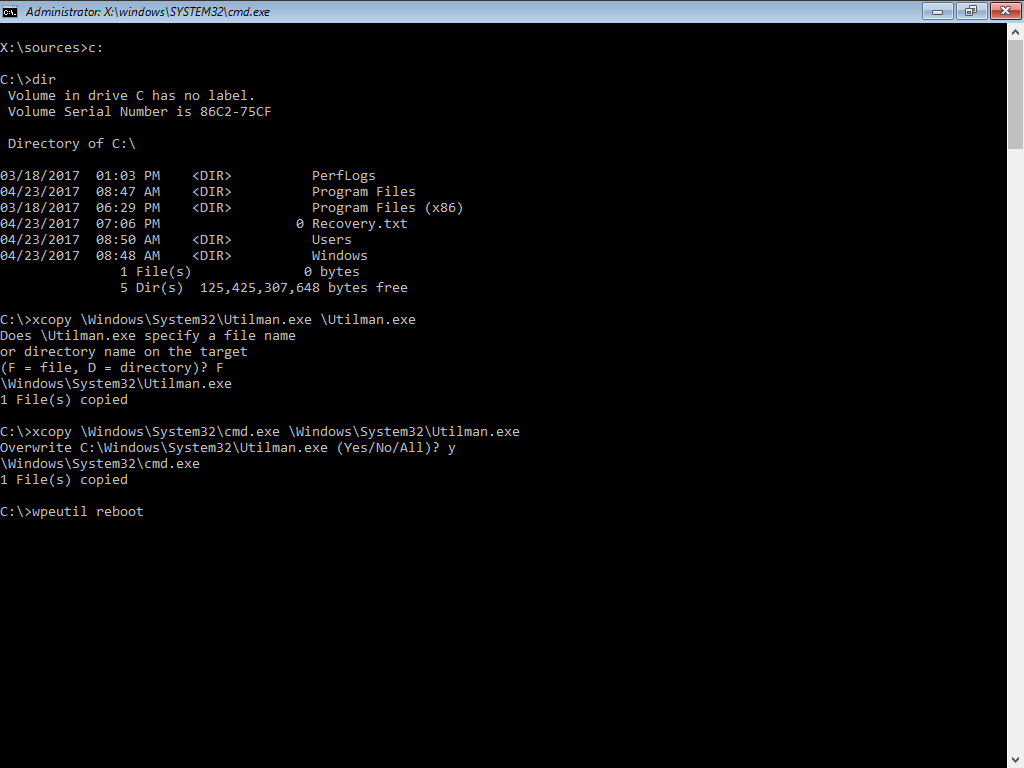
Run the following commands to back up Utilman.exe and replace it with cmd.exe
Shell
REM change disk
c:

REM Backup Utilman.exe (should be restored later)
xcopy \Windows\System32\Utilman.exe \

REM Replace Utilman.exe by cmd.exe
xcopy \Windows\System32\cmd.exe \Windows\System32\Utilman.exe /y

REM Reboot
wpeutil reboot
Click the Ease of access button. Instead of starting the actual exe, it runs cmd.exe. You can run the following commands:
Shell
REM check the current user. Should be `NT Authority\System`
whoami

REM list users
net user

REM Set the administrator password to "toto"
net user Administrator toto

REM Enable the administrator account
net user Administrator /active:yes
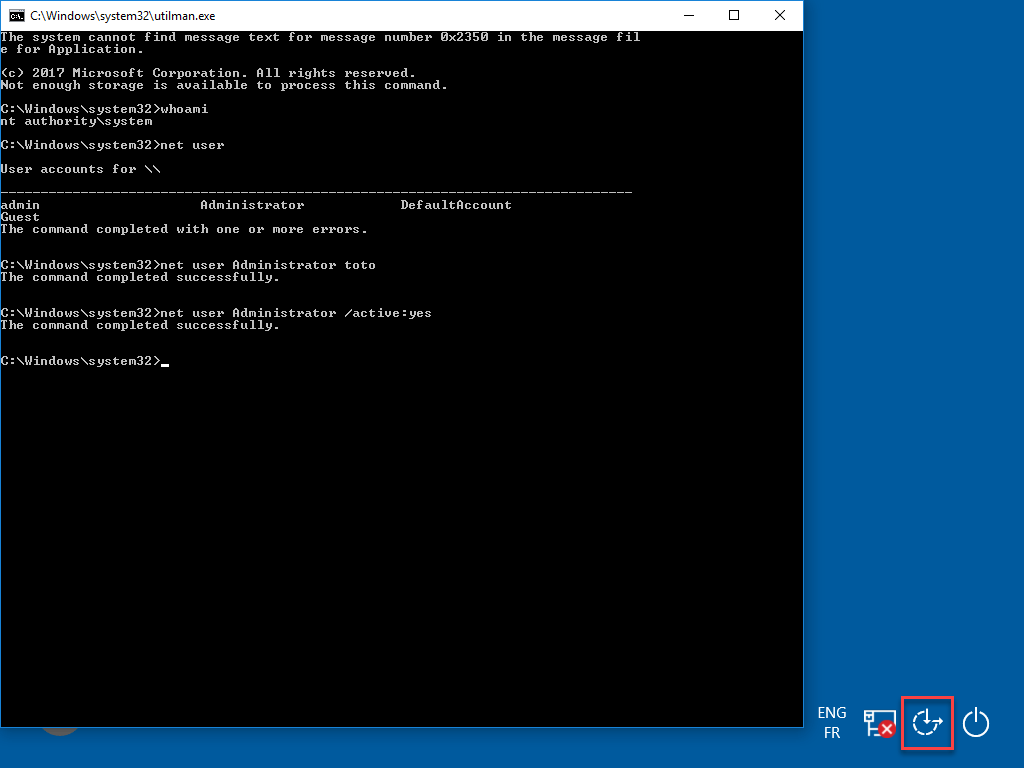
You can now log in using the username Administrator and the password toto.
Finally, you should restore Utilman.exe. Redo steps 1 to 4. Then, execute the following commands:
Shell
REM change disk
c:

REM Restore Utilman.exe
xcopy \Utilman.exe \Windows\System32\Utilman.exe /y

REM Reboot
wpeutil reboot
You can now log in as an administrator using the password toto.
#Security
To prevent this technique from being used on your computer, you should harden it. The most important step is to encrypt the disk using BitLocker or a similar tool.
Note that "reset" and "change" are different operations. When you change a password, you must provide the current one, which allows the system to decrypt and re-encrypt the sensitive data stored by the user, such as passwords in Credential Manager. When you reset a password, that sensitive data can no longer be decrypted.
#Comparison with other solutions
Hiren's BootCD and similar tools are good alternatives. However, I prefer the method above for two reasons:
- You don't need to create a bootable USB key on another computer – the current machine is locked after all.
- It uses Windows' built-in user and password manager, so the password is set correctly for the current version of Windows.
Do you have a question or a suggestion about this post? Contact me!
