Page load time is an important factor for user experience. To speed it up, CDNs (Content Delivery Networks) offer to host static files (CSS, JS, images) on their servers. This provides several benefits:
- Reduced response times: CDN servers are distributed around the world, so users are served from a nearby location.
- Reduced download times: Files shared across multiple sites on the same CDN are downloaded only once and then cached, avoiding repeated downloads. This is especially true for commonly used libraries such as jQuery, Bootstrap, and FontAwesome.
- Fewer requests to your own server: Your server is freed up to handle the requests that actually matter.
- Smaller request sizes (often negligible): Since the CDN domain differs from your site's domain, the browser does not send cookies with each request.
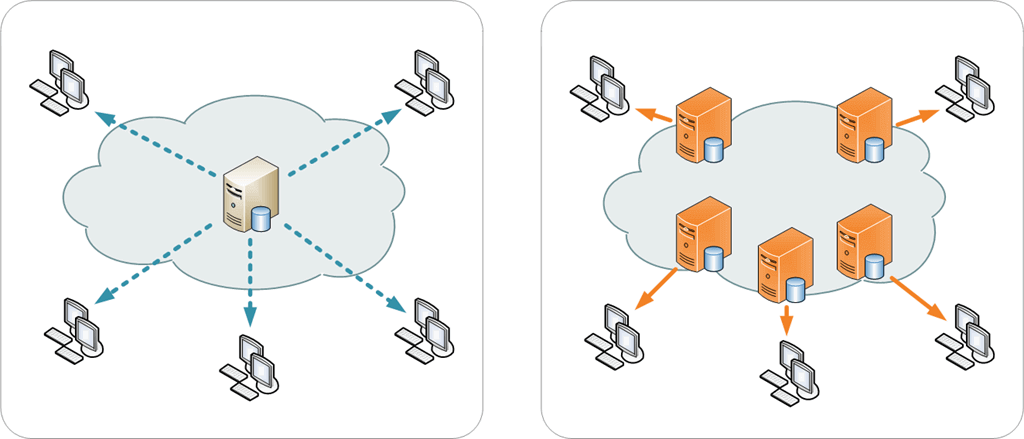
On the other hand, your application becomes dependent on the CDN. If the CDN is unavailable, the files it serves cannot be downloaded, and your application stops working. In most cases, this is not acceptable.
For JavaScript and CSS files, you can use a CDN while falling back to locally hosted files if there is a problem. When the CDN is unavailable, the page loads a bit more slowly, but the site continues to work. Let's see how to implement this.
#JavaScript files
The first step is to add the script with the address of the CDN:
HTML
<script src="//ajax.googleapis.com/ajax/libs/angularjs/1.4.0/angular.min.js"></script>
Then, check whether the script loaded correctly. To do this, identify an object or function that the script defines and verify it exists. If it does not, inject a new <script> tag pointing to the local copy on your server. In this case, you can check whether the angular object exists:
HTML
<script src="//ajax.googleapis.com/ajax/libs/angularjs/1.4.0/angular.min.js"></script>
<script>
if (!window.angular) {
    document.write("<script src=\"angular.js\"><\/script>"); // Load local file
}
</script>
Depending on the needs the verification can be more complex, but the principle remains the same.
#CSS files
As with JS files, start by adding a <link> tag pointing to the CDN:
HTML
<link rel="stylesheet" href="//maxcdn.bootstrapcdn.com/font-awesome/4.3.0/css/font-awesome.min.css" />
Then, verify that the CSS actually loaded by checking whether a known style is applied. To do this, add an element with a class defined by that CSS file. For FontAwesome, you can use the fa class:
HTML
<link rel="stylesheet" href="//maxcdn.bootstrapcdn.com/font-awesome/4.3.0/css/font-awesome.min.css" />

<meta id="FontAwesomeTest" name="x-stylesheet-fallback-test" class="fa" />
Next, use a few lines of JavaScript to verify the style applied to the element. For FontAwesome, check that the font-family of the fa class is set to FontAwesome:
HTML
<link rel="stylesheet" href="https://maxcdn.bootstrapcdn.com/font-awesome/4.3.0/css/font-awesome.min.css" />

<meta id="FontAwesomeTest" name="x-stylesheet-fallback-test" class="fa" />

<script>
var element = document.getElementById("FontAwesomeTest");

var style = document.defaultView && document.defaultView.getComputedStyle ?
    document.defaultView.getComputedStyle(element) :
    element.currentStyle;

if (style && style["font-family"] !== "FontAwesome") {
    document.write('<link rel="stylesheet" href="font-awesome.min.css" />'); // Load local file
}
</script>
It's a bit more complicated than for JavaScript, but it's still quick to put in place.
#ASP.NET Core
ASP.NET Core provides what you need to easily add fallbacks:
HTML
<link rel="stylesheet"
      href="//maxcdn.bootstrapcdn.com/font-awesome/4.3.0/css/font-awesome.min.css"
      asp-fallback-href="~/lib/bootstrap/dist/css/bootstrap.min.css"
      asp-fallback-test-class="sr-only"
      asp-fallback-test-property="position"
      asp-fallback-test-value="absolute" />

<script src="//ajax.aspnetcdn.com/ajax/bootstrap/3.0.0/bootstrap.min.js"
        asp-fallback-src="~/lib/bootstrap/js/bootstrap.min.js"
        asp-fallback-test="window.jQuery">
</script>
It will automatically add the code shown in the previous sections. So, it's much easier to use.
#Security considerations
You cannot always trust a CDN provider. Files they serve can be tampered with for various reasons – a bug, a compromised server, etc. You can guard against this using SRI. Subresource Integrity (SRI) is a security feature that lets browsers verify that fetched resources (for example, from a CDN) have not been unexpectedly modified. It works by letting you provide a cryptographic hash that the fetched resource must match.
HTML
<script src="https://stackpath.bootstrapcdn.com/bootstrap/4.3.1/js/bootstrap.min.js"
        integrity="sha384-JjSmVgyd0p3pXB1rRibZUAYoIIy6OrQ6VrjIEaFf/nJGzIxFDsf4x0xIM+B07jRM"
        crossorigin="anonymous"></script>

<link href="https://stackpath.bootstrapcdn.com/font-awesome/4.3.0/css/font-awesome.min.css" rel="stylesheet"
      integrity="sha384-yNuQMX46Gcak2eQsUzmBYgJ3eBeWYNKhnjyiBqLd1vvtE9kuMtgw6bjwN8J0JauQ"
      crossorigin="anonymous">
You can use Content Security Policy to configure your server to mandate that specific types of files require the use of Subresource Integrity. Do this using the require-sri-for directive in your CSP header. For example:
Content-Security-Policy: require-sri-for script style;
#Conclusion
As we have seen, using a CDN without being fully dependent on it is straightforward. Just add a fallback check for each remote resource. Be careful to always keep the versions of the scripts on the CDN and your server in sync…
Do you have a question or a suggestion about this post? Contact me!
