In C#, a regex is just a string. When the pattern is complex, it can be hard to understand. Visual Studio 2019 includes several improvements to help you work with regexes.
#Regexes are colorized
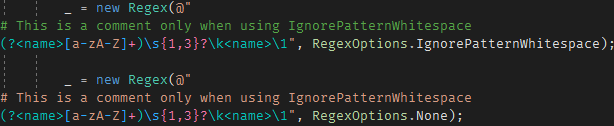
Each part of the pattern is colorized. It's easy to distinguish special characters, groups, quantifiers, comments, etc.:

The colorization depends on the regex options:
#Autocompletion works inside the pattern string
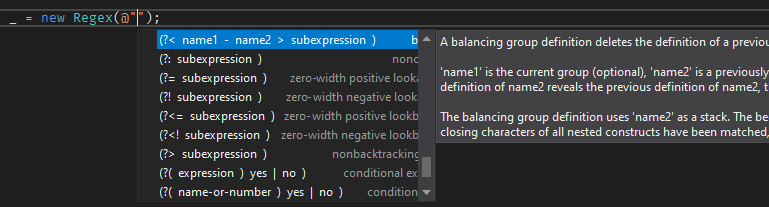
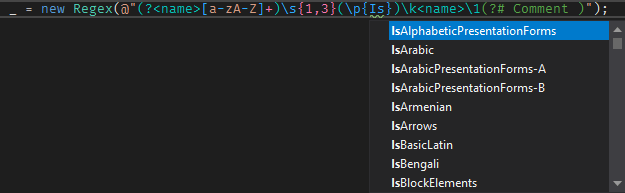
IntelliSense helps you write the regex pattern. It is useful for discovering syntax or autocompleting character categories:
#Matching parentheses are highlighted
To quickly find where a group starts or ends, Visual Studio highlights the matching parentheses:

#Backreferences are highlighted
When you see a backreference in the pattern, finding the referenced group is not always straightforward, especially for numbered backreferences. Visual Studio highlights the referenced group when your cursor is on a backreference:

#Errors in the pattern are reported
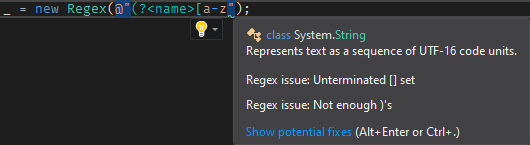
An invalid pattern will cause a runtime error. Visual Studio reports pattern errors early so you can fix them before running the code:
#Colorizing any string
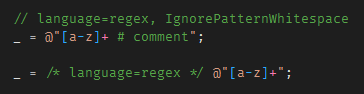
Visual Studio automatically detects strings used in Regex methods (constructor or static methods). However, if you build the pattern string before passing it to a Regex method, you can instruct Visual Studio to treat any string as a regex pattern using a comment. You can also include regex options in the comment.
The comment can be just before the string using /* language=regex */ or on the preceding line using // language=regex. Use a comma to add the regex options.
You can use the StringSyntax attribute to specify the expected language for a parameter:
C#
bool IsMatch(string value, [StringSyntax(StringSyntaxAttribute.Regex)] string regexPattern)
    => Regex.IsMatch(value, regexPattern);

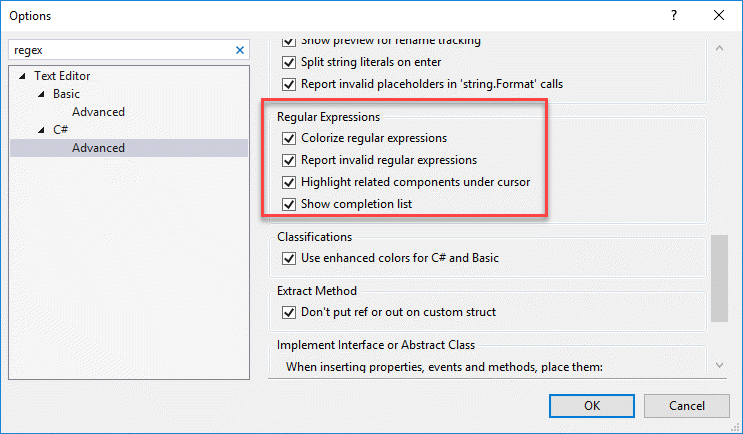
#Check your Visual Studio settings
If the above features do not work, check your Visual Studio settings:
This post is part of the series 'Visual Studio Tips and Tricks'. Be sure to check out the rest of the blog posts of the series!
Do you have a question or a suggestion about this post? Contact me!
